WELCOME Abdennour : Software engineer

Showing posts with label Mobile. Show all posts

Apr 11, 2012

iPhone Tutorial

1.iPhone Quick Start :
   
>    This tutorial lets you learn how to link the code to Objective-C UI components using the XCode editor.
>Create a listener to a Button To write to a label
>   
>    This tutorial lets you learn how to link the code to Objective-C UI components using the XCode editor.
>Create a listener to a Button To write to a label

Tuto 3 iPnohe:making background image iphone application in xcode


we will add the image above in the background of a view.
1.Open The Project of the previous tuto.
2.Double Click on .xib File .
3. drag a UIImage View from "Library" to "view"

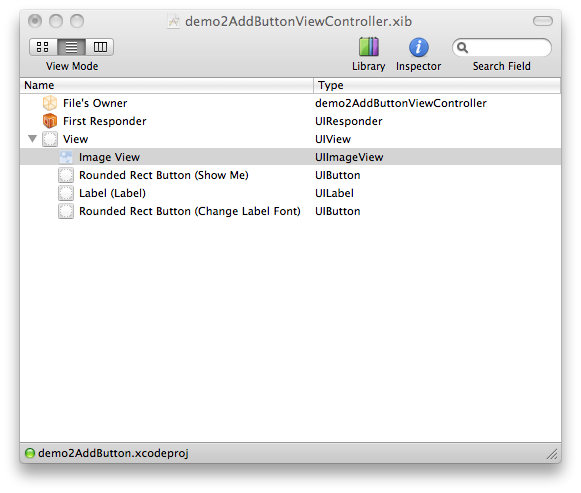
4.We have a tree of views in xib Window , So Change the priority of UIImageView to become in background.So Image View take the place of the first view in the tree .
||||||
\||||||/
\||/


-Now, you may notice the difference between the position of imageView in the image below and one in the image above

6-Add the image which would be in background : Copy>Right Click On the project >Paste


7-Select ImageView in "View" window & go to inspector , The first Tab.

8-Choose The Picture ,you will find the name of the image in a scrollable list since the image has been copied and configured by XCodec


9-Don't forget to Save .xib file .


10.Building....

Tuto 2 iPhone : How to Change Label Text Font&Color for iPhone


In the previous tutorial, we saw how to make an action for a button to write text in a label.
In this tutorial, we will strengthen this aqcuis. Indeed, the previous code will add the necessary code to change the font and Colour of the text of a label.
So, let's starting .


                                            Download Source Code
                                              
1)Add in .h file this Code : 
UIButton *btnColor;
//.....
@property (nonatomic,retain)IBOutlet UIButton *btnColor;
//.....
- (IBAction)buttonPressedB:(id)sender;

So the full Code of this file become :

#import <UIKit/UIKit.h>


@interface demo2AddButtonViewController : UIViewController {


UILabel *mylabel;
UIButton *myButton;
UIButton *btnColor;


}
@property (nonatomic,retain)IBOutlet UILabel *myLabel;
@property (nonatomic,retain)IBOutlet UIButton *myButton;
@property (nonatomic,retain)IBOutlet UIButton *btnColor;
- (IBAction)buttonPressed:(id)sender;
- (IBAction)buttonPressedB:(id)sender;
@end

=>Indeed, the addition of this code is used to define another button and also to define its action

2)Add this Code in the .m file : 

@synthesize btnColor;
//.....
- (IBAction)buttonPressedB:(id)sender
{
[myLabel setTextColor:[UIColor redColor]];
[myLabel setFont:[UIFont boldSystemFontOfSize:33]];
}


The Full Code OF .m file : 

#import "demo2AddButtonViewController.h"


@implementation demo2AddButtonViewController
@synthesize myLabel;
@synthesize myButton;
@synthesize btnColor;


- (IBAction)buttonPressed:(id)sender
{
[myLabel setText:@"Peace Up To You"];
}
- (IBAction)buttonPressedB:(id)sender
{
[myLabel setTextColor:[UIColor redColor]];
[myLabel setFont:[UIFont boldSystemFontOfSize:33]];
}

- (void)didReceiveMemoryWarning {
// Releases the view if it doesn't have a superview.
    [super didReceiveMemoryWarning];

// Release any cached data, images, etc that aren't in use.
}


- (void)viewDidUnload {
// Release any retained subviews of the main view.
// e.g. self.myOutlet = nil;
}


- (void)dealloc {
    [super dealloc];
}


@end


===
Don't forget  to link your Action  To its method( buttonPressedB).

Choose


As yo see, It's the same principle as the first tuto,But  this tutorial lets you practice using , advancing well.


Before Click on btnColor : 


After Clicking:


PeaceUponToWorld(HelloWorld) iPhone Application (Step By Step)

 Download Source Code
       
The world of iPhone is a world too superb.After GREAT Thanking ALLAH, My great thanks to the Dev Center Orange Tunisia which gives me the oppertunity to practice programming iphone thanks to their high level of material,
I decided to start with the simplest template and create a very, very easy application.

So, let's begin.
First off lets launch Xcode and get a new project going.
So
open XCode

Once you have selected it, click “Create a new Xcode Project…”

Select the project type  "View based application." Confirm your choice by double clicking.


Now, I have entered the name “PeaceUponToYou”  as my project name instead of "Untitled, then click "Save".


The project was presented with your newly created project in the XCode editor/IDE.


Deploy directories "classes", "Other Sources", "Resources" and concentrate on the three files
following:

1. The file PeaceUponToYouViewController.h can define all the properties and actions that will display the text "Peace Upon To You" on the screen of your iPhone simulator.


2. The file PeaceUponToYouViewController.m  in which you implement the code and methods predefined actions in the file header.
Remember that. H and. M always "walk" in pairs.


3. The file PeaceUponToYouViewController.xib  which is the user interface program that execute Interface Builder to create graphical interfaces for your application.


Open PeaceUpnToYouViewController.h , And Write This Code: 

#import <UIKit/UIKit.h>

@interface PeaceUponToYouViewController : UIViewController {
UILabel *mylabel;
UIButton *myButton;

}
@property (nonatomic,retain)IBOutlet UILabel *myLabel;
@property (nonatomic,retain)IBOutlet UIButton *myButton;
- (IBAction)buttonPressed:(id)sender;


@end


Open PeaceUponToYouViwController.m and write this code : 


#import "PeaceUponToYouViewController.h"

@implementation PeaceUponToYouViewController

@synthesize myLabel;
@synthesize myButton;

- (IBAction)buttonPressed:(id)sender
{
[myLabel setText:@"Peace Up To You"];
}
=>By analogy to the java world, buttonPressed is as a Listener

Now Double Click on PeaceUponToYouViwController.xib


=>and therefore, as you see, you use Interface Builder to "draw" your application:


4 windows will be opened :

1. Library : where you can select your graphic elements such as
UILabel, UITextField, UIButton, etc..

2. View  is somehow your iPhone screen. You slide your graphics here and
will organize so as to ease the use of your application.
3. PeaceUponToYouViewController.xib that displays according to the mode of viewing the elements present in the file. xib
4. Inspector (to view a press ⌘+1, or Tools> Inspector) which includes four other windows
segmented by tabs that let you edit the properties of your objects UILabel, View, etc..


In any case, we return to practice:

1) let’s go ahead and drag a Label from Library Window on to the screen(View)


The label now is on The Screen :
Then , Do the same thing  with a button and Change Text to "Show me" for Example.
And After building the project the Screen become  .... 


Now it is necessary to link your Action  to your showPeaceUponToYou method.


Simply select your button in which you previously entered the message "Show me", in Inspector, choose the tab "Connections" indicated by an arrow(Flèche). and a list of all possible actions on this button will appear.

How To do this ?
=> Right Click on "File's Owner" (which is in .xib Window)   and  make the combination of the button with your left mouse button depressed and [Ctrl] key on your Apple Mac computer and your loved without  releasing [Ctrl] key .


Choose "Touch Up Inside " as Action . 
That's Meaning ; When I click on Button , the Action will be excuted .

 Before Runtime , Save .xib File :

Before Click On the Button


After Click 
Congratulations!!!